
[!INFO] Registering a license only required if you are using a premium component. It is not required if you stick to open-source features.
When you use a premium component of Metalama for the first time, the license registration UI will open, where you can choose between the 45-day evaluation mode, the Metalama Community, or registering a license key.
To change your license after the activation UI has closed, you can choose one of the following approaches.
With the Visual Studio tooling
You can manage your Metalama licenses using Visual Studio Tools for Metalama. For instructions on how to install it, see Installing Visual Studio Tools for Metalama.
To access these options:
- In the top-level menu, choose Extensions > Metalama + PostSharp > Options.
- Go to the License tab.
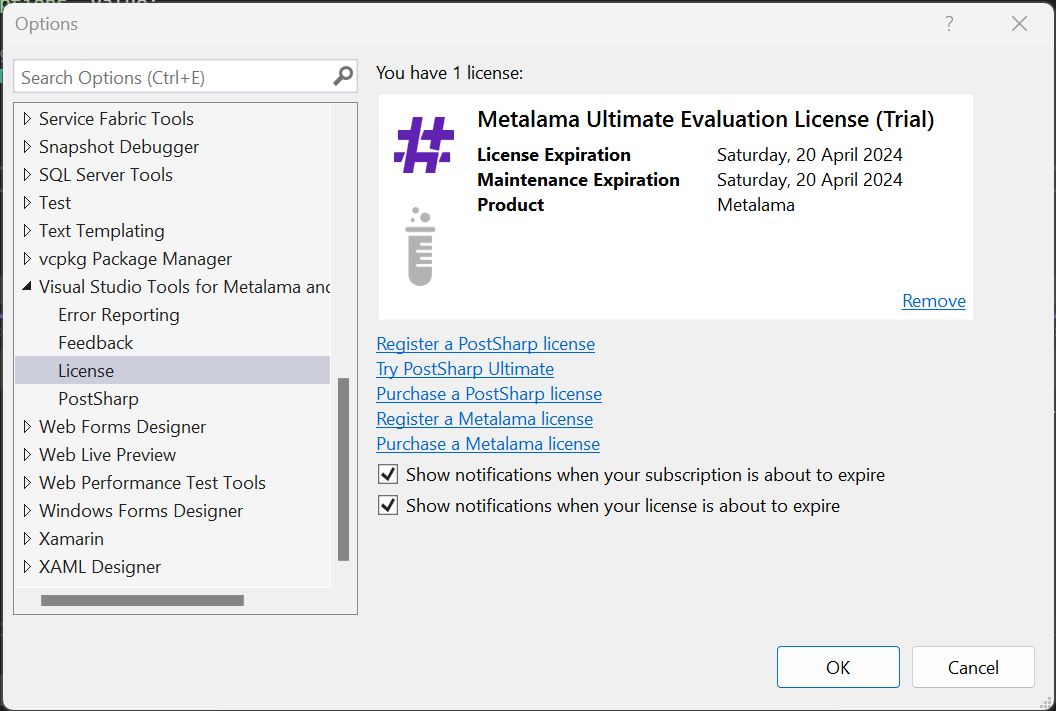
With the command-line tool
You can manage licensing options using the metalama CLI tool.
First, install the Metalama Command Line Tools as detailed in Installing the Metalama Command Line Tool.
The following commands are available:
| Command | Description |
|---|---|
metalama license list |
Shows the current license options. |
metalama license try |
Activate the 45-day evaluation period of Metalama Ultimate. |
metalama license community |
Activate Metalama Community, free for non-commercial use, individuals, and companies with up to 3 users. |
metalama license register <LICENSE KEY> |
Register a license key. |
By editing the configuration file
To manually register a license for the current user, do the following:
Open the Metalama licensing JSON configuration file
licensing.json. This file is located in the%appdata%\\Metalamadirectory on Windows, and in the~/.metalamadirectory on Linux and Mac.Set the license key as the
licensevalue. If the file doesn't exist, it should contain the following content (where123-ABCDEFGHIJKLMNOPQRSTUVXYZis a placeholder for the actual license key):{ "license": "123-ABCDEFGHIJKLMNOPQRSTUVXYZ" }
With an environment variable or MSBuild property
The license key can be stored as the value of the MetalamaLicense MSBuild property. This allows for the following:
- Storing the license as a value of the
MetalamaLicenseenvironment variable. - Storing the license in the source code repository using the Directory.Build.props file.
- Storing the license in the
.csprojproject file.